Virtual Networks
Virtual Networks management page. Virtual networks allow you to define how Virtual Machines (VMs) communicate with each other, the host system, and the external internet using software-defined networking (SDN).
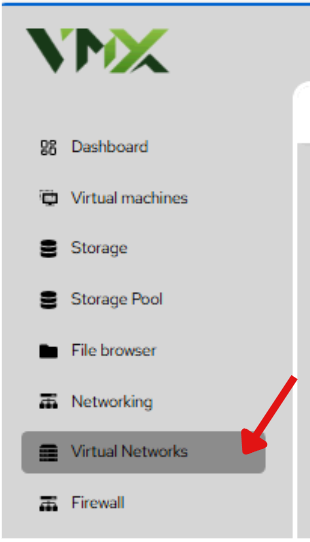
Steps To Follow:
- Click on Networking menu from the list. It will navigate you to the Networking page.
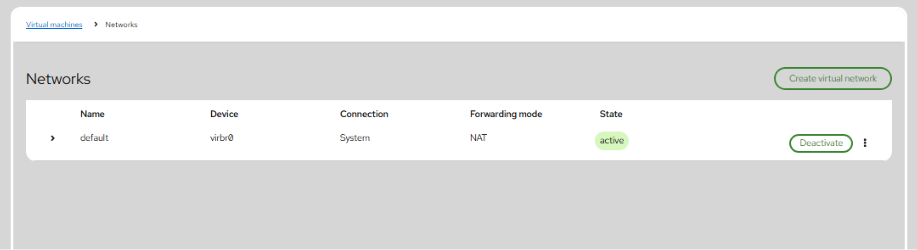
| Column | Description |
|---|---|
| Name | The unique label for the virtual network (e.g., default). |
| Device | The backend virtual bridge device (e.g., virbr0) handling the traffic. |
| Connection | The system-level connection type. |
| Forwarding mode | Defines how traffic moves (e.g., NAT for internal-to-external translation). |
| State | Shows whether the network is Active or Inactive. |
Delete Virtual Network
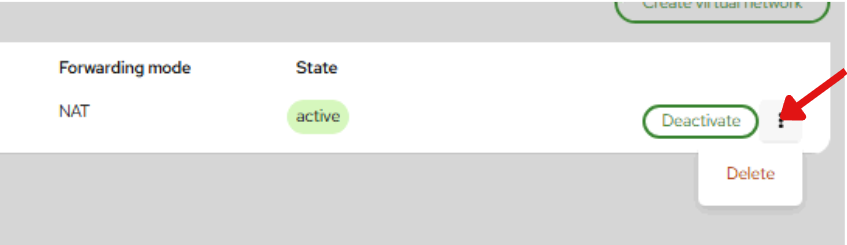
- Click on (⋮) thare see an option Delete Click on it Removes the virtual network permanently from the system
Create Virtual Network
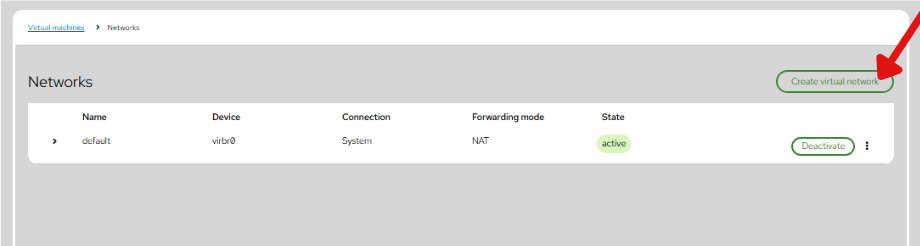
- Click on Create Virtual Network button from the list. It will navigate you to the Create Virtual Network page.
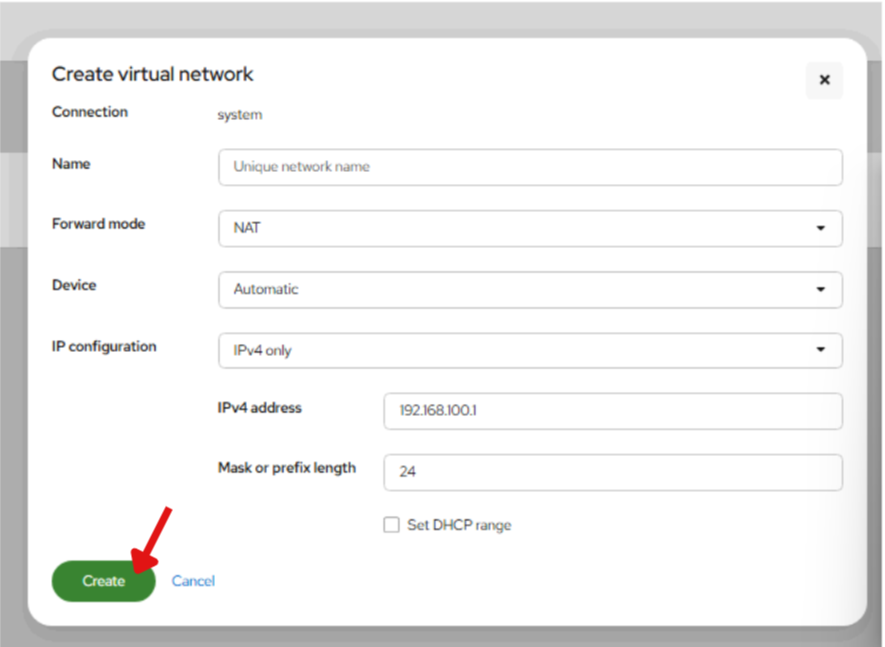
- Enter the required details in the Create Virtual Network form.
Name: A unique identifier for the network. Forwarding mode: * NAT (Network Address Translation): VMs share the host's IP address to access the internet but remain hidden from incoming external connections. Routed: Traffic is routed between the VMs and the physical network without address translation. Isolated: VMs can talk to each other and the host, but have no access to the external physical network. Device: Set to Automatic to let the system generate the virtual bridge device. IP Configuration: * IPv4 address: The gateway IP for the virtual network (e.g., 192.168.100.1). Mask or prefix length: Defines the size of the network (e.g., 24 for a standard 255-host subnet). Set DHCP range: If enabled, the system will automatically assign IP addresses to VMs from a specified pool.
- Click on Create button from the list. It will create the virtual network.